
Home
REST Client Next allows you to send HTTP requests and view responses directly in VS Code.
REST Client Next allows you to send HTTP request and view the response in Visual Studio Code directly. It eliminates the need for a separate tool to test REST APIs and makes API testing convenient and efficient.
This documentation is based on the original README from Huachao’s REST Client.
Main Features
REST Client Next provides a comprehensive set of features for API testing:
- Send/Cancel/Rerun HTTP request in editor and view response in a separate pane with syntax highlight
- Send GraphQL query and author GraphQL variables in editor
- Send cURL command in editor and copy HTTP request as
cURL command - Auto save and view/clear request history
- Compose MULTIPLE requests in a single file (separated by
###delimiter) - View image response directly in pane
- Save raw response and response body only to local disk
- Fold and unfold response body
- Customize font(size/family/weight) in response preview
- Preview response with expected parts(headers only, body only, full response and both request and response)
- Authentication support for Basic Auth, Digest Auth, SSL Client Certificates, Microsoft Entra ID (ex Azure Active Directory), OpenID Connect (as Microsoft Identity Platform), AWS Signature v4, and AWS Cognito
- Environments and custom/system variables support with powerful variable resolution
- Generate code snippets for HTTP requests in multiple languages
- Remember Cookies for subsequent requests
- Proxy support
- Send SOAP requests with snippet support
- Full HTTP language support with syntax highlighting, auto completion, and more
Quick Start
In editor, type an HTTP request as simple as below:
https://example.com/comments/1
Or follow the standard RFC 2616 including request method, headers, and body:
POST https://example.com/comments HTTP/1.1
content-type: application/json

{
    "name": "sample",
    "time": "Wed, 21 Oct 2015 18:27:50 GMT"
}
To send a prepared request, you can:
- Click the
Send Requestlink above the request - Use the shortcut
Ctrl+Alt+R(Cmd+Alt+Rfor macOS) - Right-click in the editor and select
Send Request - Press
F1and select/typeRest Client: Send Request
The response will be previewed in a separate webview panel inside Visual Studio Code.
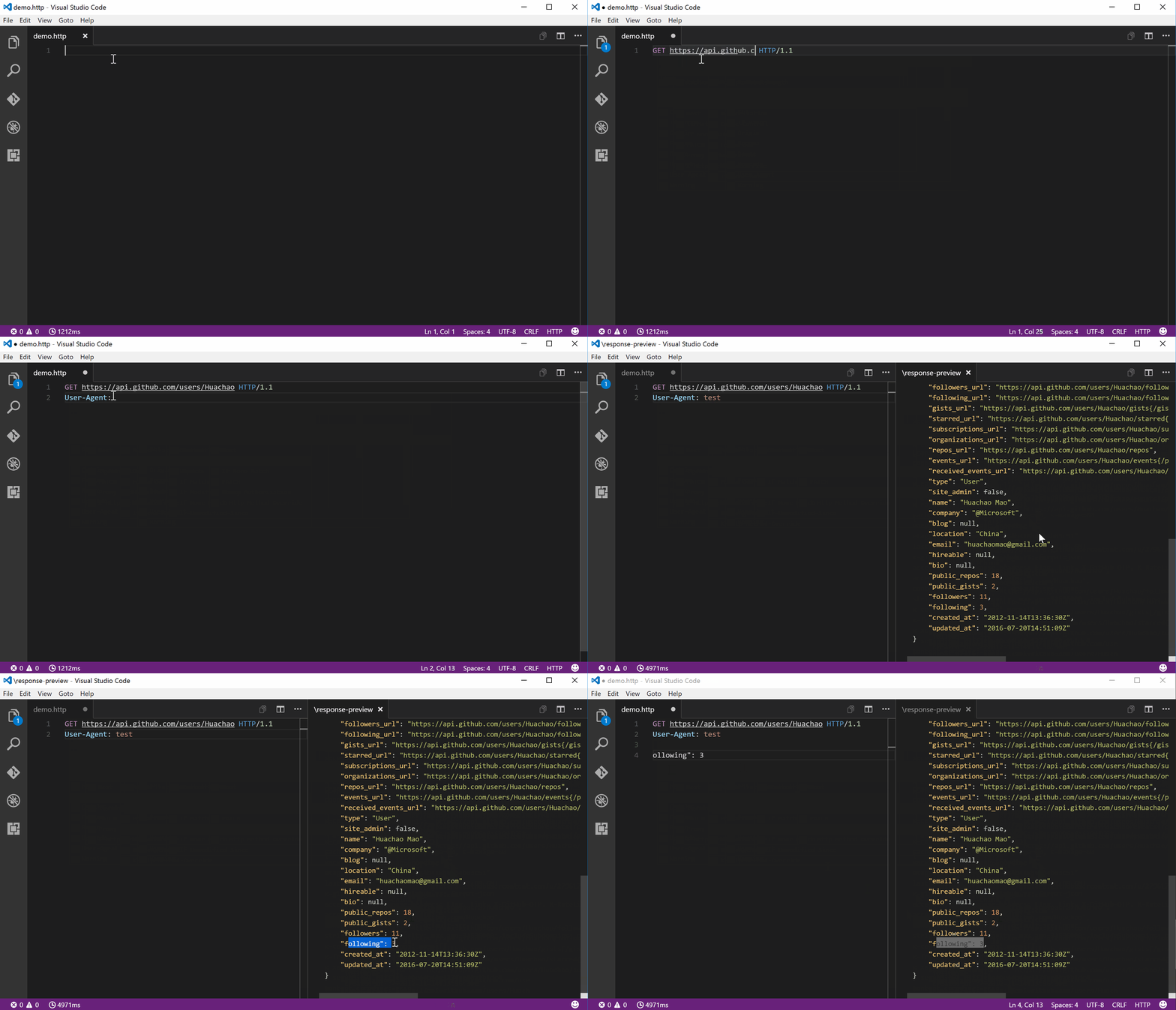 Send request with Rest Client Next demonstration
Documentation Sections
- Features - Detailed feature overview
- Usage - How to use the REST Client
- Commands - Complete command reference and shortcuts
- Authentication - Authentication methods and configuration
- Variables - Environment, file, request, and system variables
- Settings - Configuration settings and customization
- HTTP Language - HTTP language support details
Installation
Press F1, type ext install then search for rest-client-next.
Or install directly from the Visual Studio Code Marketplace.